
CadetNet MFA
Frequently Asked Questions I CadetNet 365
Introducing Multifactor Authentication
Multifactor Authentication (MFA) keeps your personal information and accounts secure. It also protects Defence’s applications and systems against threats.
As part of continuous security improvements, RCSD will enable mandatory two forms of MFA. This is to ensure each user have the ability to log back into the system should their main method of MFA is not accessible (purchased a new phone, lost your phone, or accidentally deleted the app). This will also allow you to reset your own password.
What does this mean for you: You will have to register 2 different methods of MFA (e.g. SMS and Microsoft Authenticator App). If you have already set up 2 methods of MFA and your security question, there is no further action, otherwise please set up your 2nd method of MFA and your security question now. Follow link to guide HERE.
How can I set up MFA?
There are multiple ways that you can set up MFA but the best way is to download the Microsoft Authenticator application on your smart device, or a smart phone that you can access.
This is the best way to receive the authentication code and you can access our Help Guide here for more information on how to set up a Microsoft authenticator account. It is also a good idea to turn on MFA wherever it is available to protect all of your accounts!
What is MFA?
MFA is a two-step process to prove that you are who you say you are. This is called authentication and once you enter your username and password, you will be required to authenticate by using a unique code as the second step.
There is a good chance you are already using MFA. It is very common and is used to access work and school accounts, and to also unlock accounts for banks, Google, Facebook, streaming services, online interactive games and more.
Why do we have to use MFA?
Usernames and passwords are information that can be easily discovered and used to take over not just your CadetNet account but also other personal or work accounts if you have repeated the same password.
Having an extra step can be inconvenient at first, but remember that taking shortcuts leaves your system more vulnerable to avoid spending hours later on trying to regain access to your accounts and dealing with the consequences of your data being stolen.
Known issue impacting Multifactor Authentication?
Some users are currently experiencing an issue where they are unable to proceed past Multifactor Authentication (MFA) screen when accessing CadetNet M365. This issue occurs when users only having one MFA registered on the system.
Please check out our help guide here if you need assistance.
How does this change the way I access CadetNet?
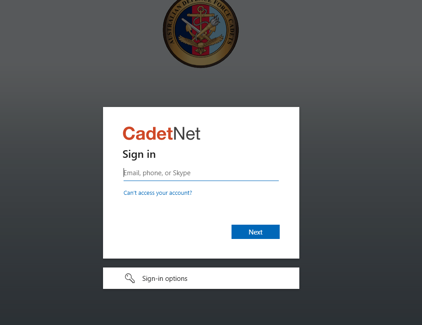
The look and feel of the log on screen that you are used to seeing will be changing so that we can activate MFA. As well as entering your username and password, MFA will require a second step to authenticate who you are. To do this Defence will be using the Microsoft authentication process
What if I don’t own or have access to a smartphone?
Defence is working on a solution to support you. In the meantime, you can download an authentication application to a tablet, laptop or PC that you own or can readily access when you need to use CadetNet. This application will provide you with the code you need to authenticate, however you will need to make sure your device is kept secure.
If this doesn’t work for you talk to your unit command to obtain printed versions of activity schedules, communication notifications, forms, and training material. Support will be considered on a case by case basis.
How to Add a New Authentication Method
- Navigate to My Account (microsoft.com)
- Under the Security Info heading, select "Update Info".
- Follow the authentication instructions on the page.
- Once you reach the Security Info page, click on "Add sign-in method".
- In the drop-down menu that appears, users can select which authentication method they would like to add.
- Once the new method is selected, follow the onscreen steps to finish setting up.
- You should now see the newest authentication method listed on the Security Info screen.
Note: Email and Security Questions are not set up for CadetNet
How to Change the Default Authentication Method
- Navigate to My Account (microsoft.com)
- Under the Security Info heading, select "Update Info
- You will be asked to authenticate using the method set-up during onboarding.
- Once you reach the Security Info page, click "Change" beside Default sign-in method.
- In the drop-down menu that appears, select the method you would like to make your default authentication method.
- Click "Confirm".
- Next to the Default sign-in method you should now see the newly selected authentication method.
How to Remove an Authentication Method
- Navigate to My Account (microsoft.com)
- Under the Security Info heading, select "Update Info".
- You will be asked to authenticate using the method set-up during onboarding.
- Once you reach the Security Info page, find the authentication method you would like to remove in the list.
- Click "Delete" and then "OK" to confirm.
- The authentication method should be removed from the list of sign-in methods.
Adding a Phone Number Authentication Method
- On your computer select "Add a Method". Select "Phone" from the dropdown menu. If using a phone with an extension select "Office Phone".
- Enter your phone number and extension if applicable. Microsoft will call your phone. Listen for the prompt and press the "#" key.
- Now whenever you are prompted to sign in and you don’t have access to your cell phone or your default method of authentication you can select "Sign in another way" and the telephone option will be available.
Adding the Authenticator App Authentication Method (Mobile phone required)
- On your computer select "Add a Method".
Select "Authenticator App" from the dropdown menu. - Continue to click "Next" until a QR code appears.
- On your mobile device, open Play Store (Android)/App Store (iOS) and download Microsoft Authenticator.
- Open Microsoft Authenticator.
- On the initial screen, tap "I agree".
- Then tap "Scan a QR Code".
- A camera overlay will appear on your mobile device. Using the camera overlay, scan the QR code on the computer.
- You will be prompted to allow notifications. Click "Allow".
- You have successfully set up the Authenticator app.